
Important: you must have an organisation (paid for) account on arcgis.com that has admin rights for the organisation, so that you can configure your organisation to allow authenticated WMS/WFS endpoints from trusted servers.
1. Login to arcgis.com and navigate to: https://myorganisation.maps.arcgis.com/home/organisation.html (replace myorganisation with your org name).
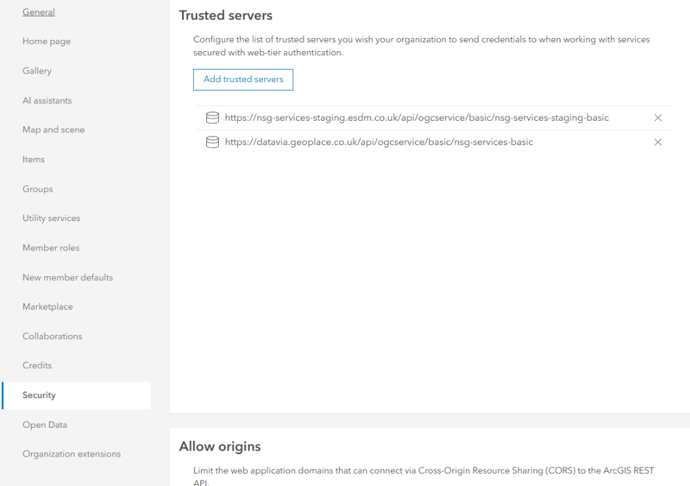
2. Choose the 'Security' tab on the left hand side menu and then scroll down to 'Trusted servers'.
3. Add the following url to the Trusted Servers section - https://datavia.geoplace.co.uk/api/ogcservice/basic/nsg-services-basic.
4. Ensure that you have a user account on datavia.geoplace.co.uk. You must have already logged in to that site and agreed to the terms & conditions before you will be able to use any data in AGOL.
5. Navigate to the main map builder page for your site in AGOL, e.g. https://myorganisation.maps.arcgis.com/apps/mapviewer/index.html
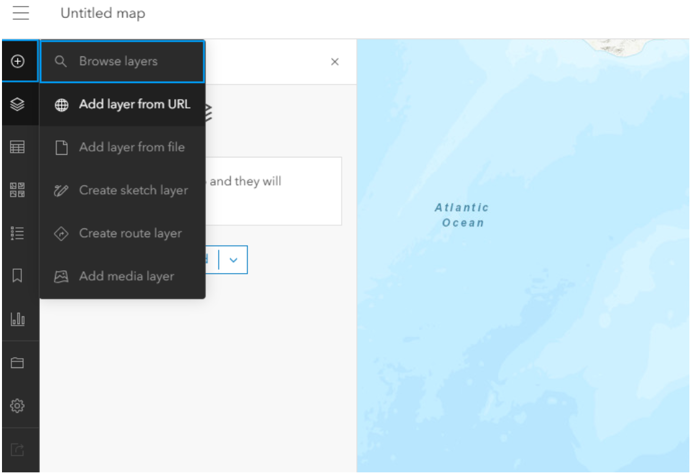
6. Add a new WMS layer to your map by clicking on the + button in the top left and then Add Layer from URL.
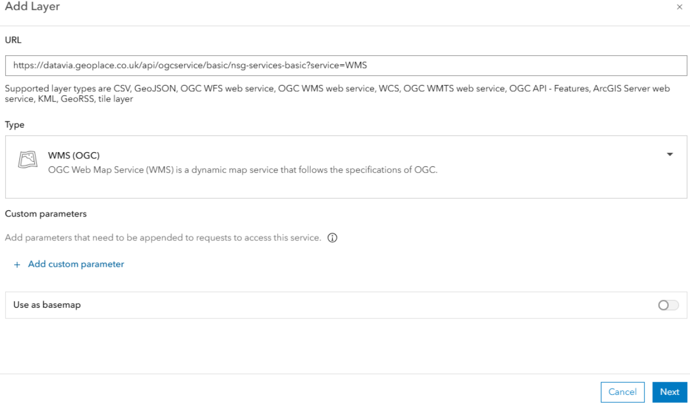
7. Add a link to the right endpoint (WMS or WFS) by appending '?service=WMS' or '?service=WFS' to one of the trusted server endpoints defined above. The Type drop down should automatically change to either WMS (OGC) or WFS (OGC).
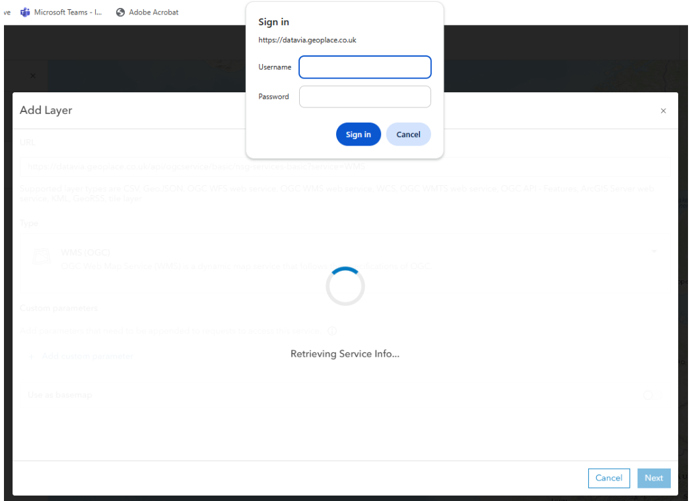
8. Click 'Next'. You should now be prompted for a username and password. Use the account that you created and tested in steps 4 and 5. Note this will not work if you don't have an organisation login for AGOL.
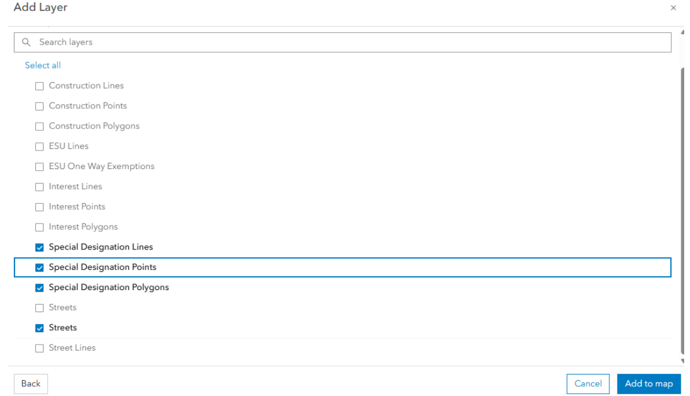
9. Choose from the list of layers and then click 'Add to map'. Note that 'Streets' is listed twice. One is a layer, the other a layer group and it's impossible to tell which is which in AGOL.
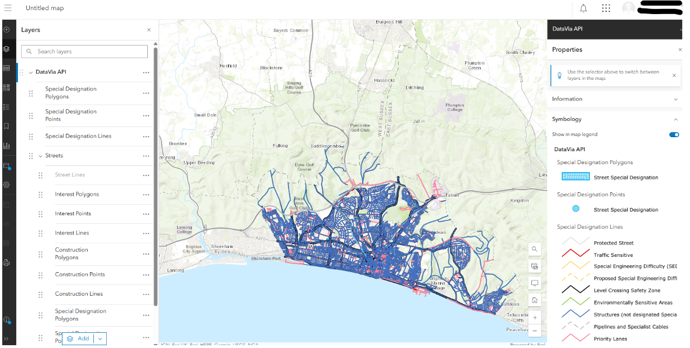
10. Note for WMS layers: AGOL might set the map extent to 0 degrees N and 0 degrees E. This can be changed in the organisation settings for the base map layer. Navigate back to the UK on the map and view your area.
Notes for the WFS endpoints.
It is not recommended to use WFS with AGOL, unless you are only viewing one provider_ID's data. AGOL can support up to a maximum of 30,000 features and never uses a bounding box on the map, so it always requests all features. This is very slow and will likely overload your browser and/or the server. Using a single provider is usually possible in AGOL as the feature count is mostly below that limit.
Ensure that the data endpoint URLs used are exactly as given in this documentation. E.g. https://www.datavia.geoplace.co.uk/api/ogcservice/basic/nsg-services-basic?service=WMS may look like a valid endpoint, and may work in QGIS, but it must be https://datavia.geoplace.co.uk/api/ogcservice/basic/nsg-services-basic?service=WMS (note the removal of the 'www') for it to work in AGOL.
Further notes for AGOL
DataVia WFS services are a powerful way to integrate live geospatial data into ArcGIS Pro and ArcGIS Online. Though we acknowledge ESRI’s implementation of OGC standards come with certain limitations you can make effective use of WFS services by applying filters, queries and manual extents. These techniques allow users to leverage open data standards while navigating ESRI’s constrained OGC support.
Limitations
There are some known limitations for the WFS client in ArcGIS Pro which may affect customers:
- Sharing the WFS layer as a web map from ArcGIS Pro is not yet supported.
- ArcGIS Desktop-based WFS services at version 10.5 or earlier require using snapshot mode.